Filing to HMRC
Set your quarterly periods
Before your first quarterly update, HMRC needs to know whether your quarters follow the tax year or the calendar. It takes a minute, and it has to be done in Quarterwise rather than on HMRC’s website.
About a minute · Updated 6 October 2026
Why HMRC asks
Under Making Tax Digital you send HMRC four quarterly updates a year. HMRC lets you choose how those quarters are cut. Standard quarters follow the tax year and end on 5 July, 5 October, 5 January and 5 April. Calendar quarters count from 1 April and end on 30 June, 30 September, 31 December and 31 March, so every quarter finishes on a month end.
HMRC needs your choice before it will accept your first update for a tax year, and there is nowhere to set it on HMRC’s own website. It can only be sent through software, which is why Quarterwise puts it in front of you as a step. Until it is set, the quarterly updates page will tell you it cannot file yet.
Which should I choose?
The deadlines for the four updates are the same either way: 7 August, 7 November, 7 February and 7 May, and your tax return is due by 31 January. Each update covers the year so far, from 6 April on standard quarters or from 1 April on calendar quarters.
| Quarter | Standard | Calendar | Deadline |
|---|---|---|---|
| 1 | 6 Apr to 5 Jul | 1 Apr to 30 Jun | 7 Aug |
| 2 | 6 Jul to 5 Oct | 1 Jul to 30 Sep | 7 Nov |
| 3 | 6 Oct to 5 Jan | 1 Oct to 31 Dec | 7 Feb |
| 4 | 6 Jan to 5 Apr | 1 Jan to 31 Mar | 7 May |
- Calendar is only available when your accounts run from 1 April to 31 March. Quarterwise shows the option only when HMRC’s records say so.
- Standard suits people who already keep records against the tax year, or who want the quarters to match the dates HMRC uses everywhere else.
For a fuller comparison with a worked example, see the guide to standard or calendar quarters.
If you are unsure, calendar is the simpler day-to-day choice. Neither affects how much tax you pay.
Before you start
The button only works once three earlier things are in place, and the page tells you which is missing:
- Your National Insurance number is saved (Step 1 on the HMRC page).
- You have connected to HMRC with your Government Gateway login, and your property business has been found (Steps 2 and 3).
- Two-factor authentication is turned on for your account. Anything that sends information to HMRC requires it.
Step by step
1. Open the HMRC page
Sign in and open HMRC from the dashboard. If your setup checklist is showing Choose your quarterly periods, that button takes you straight to the right step.
2. Go to Step 4
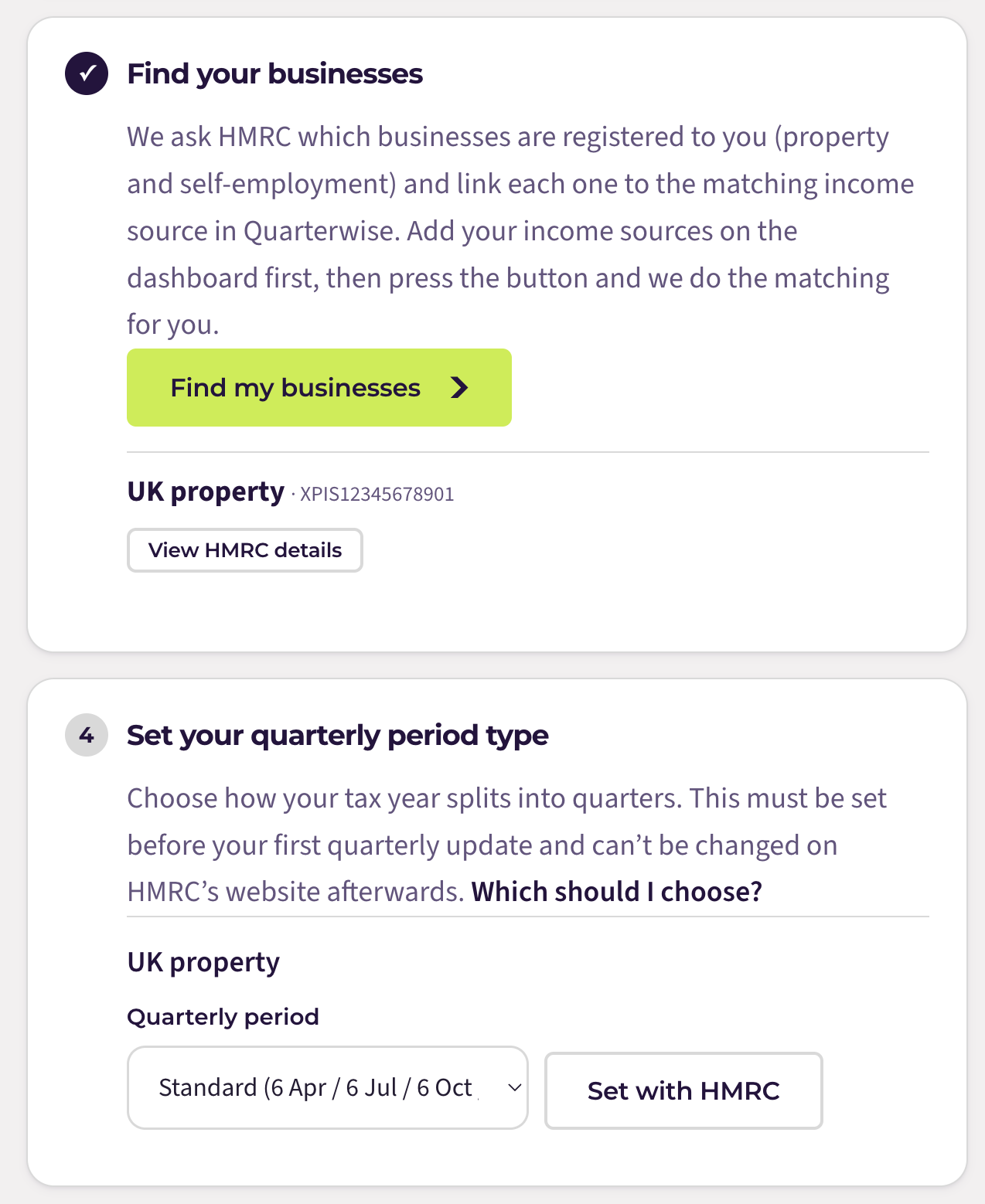
Scroll to Step 4, Set your quarterly period type. It sits below the step that finds your businesses, and it is greyed out until Steps 2 and 3 are done. Each business HMRC has returned is listed with its own dropdown.
3. Choose standard or calendar
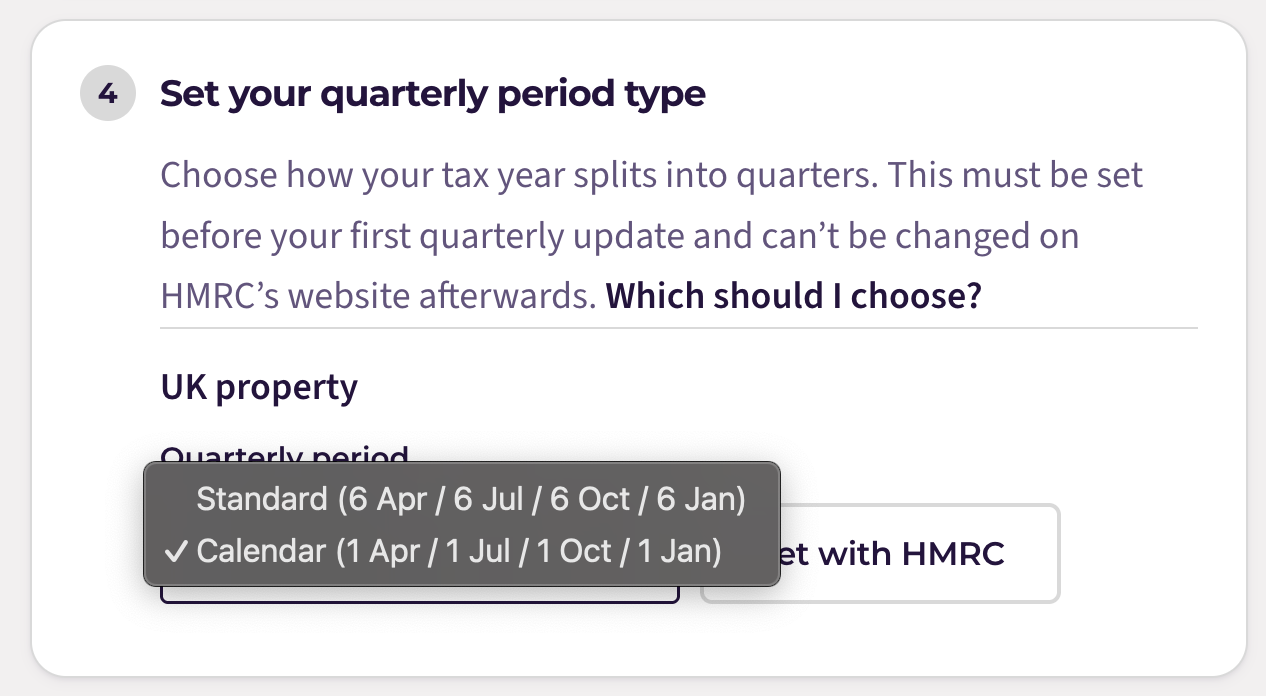
Open the Quarterly period dropdown and pick one of the two options. The dates shown next to each are HMRC’s labels for the two patterns; the table above gives the exact quarter boundaries.
4. Select Set with HMRC
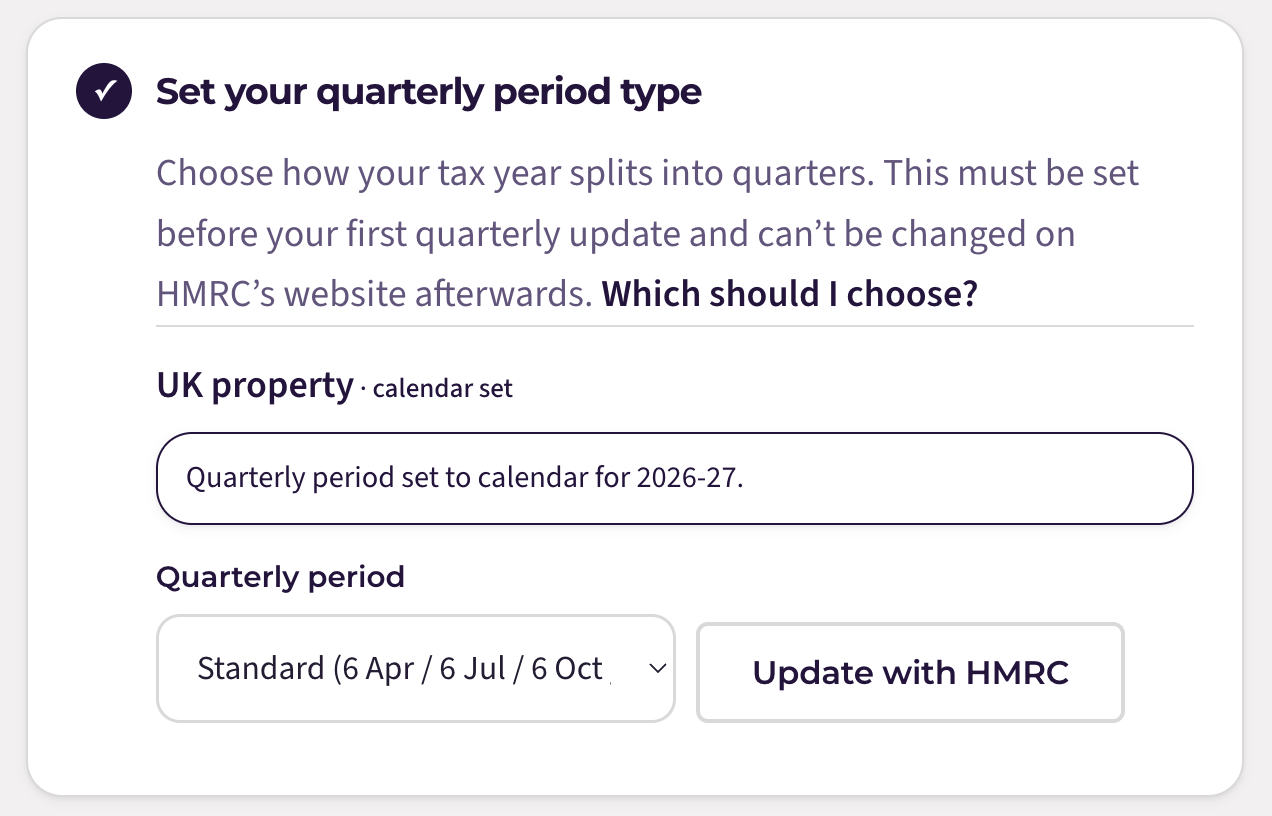
Quarterwise sends your choice to HMRC. You will see a confirmation such as Quarterly period set to calendar for 2026-27, and the business is marked as set.
5. Repeat for any other business
If you also have an overseas property business, or self-employment income, each has its own dropdown and its own choice. They do not have to match.
6. Go to Quarterly updates
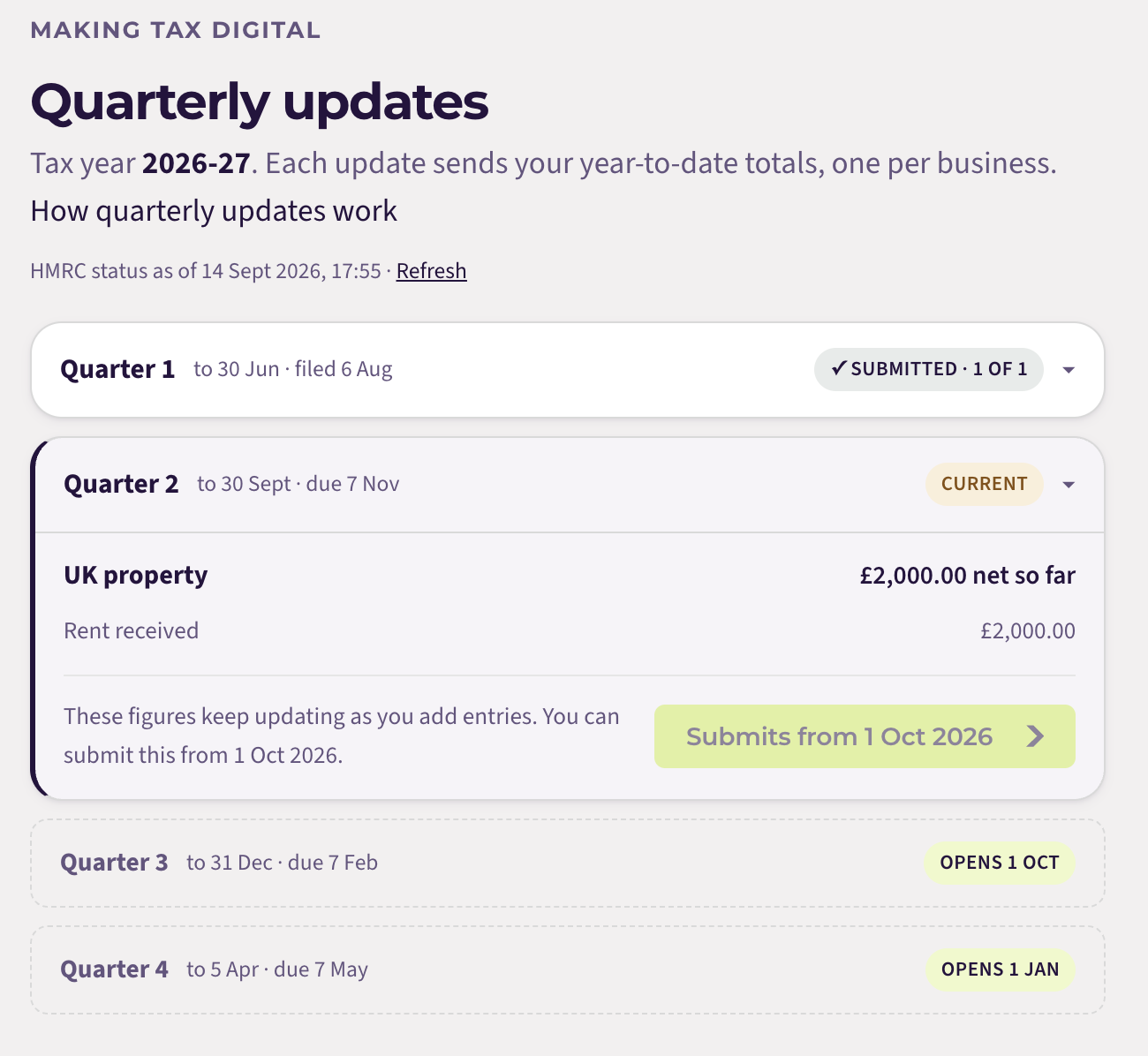
Open Quarterly updates. The four quarters now show with your dates, and the current one is ready to review and file.
If something stops you
- “Add your National Insurance number first”: go back to Step 1 on the same page and save it.
- Two-factor authentication is required: turn it on under Account, then Security, and come back. It is required for everything that reaches HMRC.
- Step 4 is greyed out: connect to HMRC (Step 2) and let Quarterwise find your businesses (Step 3) first.
- “You can no longer change the quarterly period type”: you have already filed an update for this tax year, so HMRC has locked the choice for the year. You can choose again for the next tax year before its first update.
Changing your mind
You can switch between standard and calendar until your first update of the tax year is filed. After that HMRC locks it for the year. If you want a different choice, make it before the next tax year’s first update.
Still stuck?
Email support@quarterwise.co.uk and say which step you are on. A person reads every message.