Properties and businesses
Change the picture on a property or business
Each property and business has a picture behind its name. We pick one to suit, and you can swap it for another from our library, use a photo of your own, or turn it off.
About a minute · Updated 17 November 2026
Step by step
1. Open Settings
From your dashboard, select the property or business and open the Settings tab. Background picture is the second card.
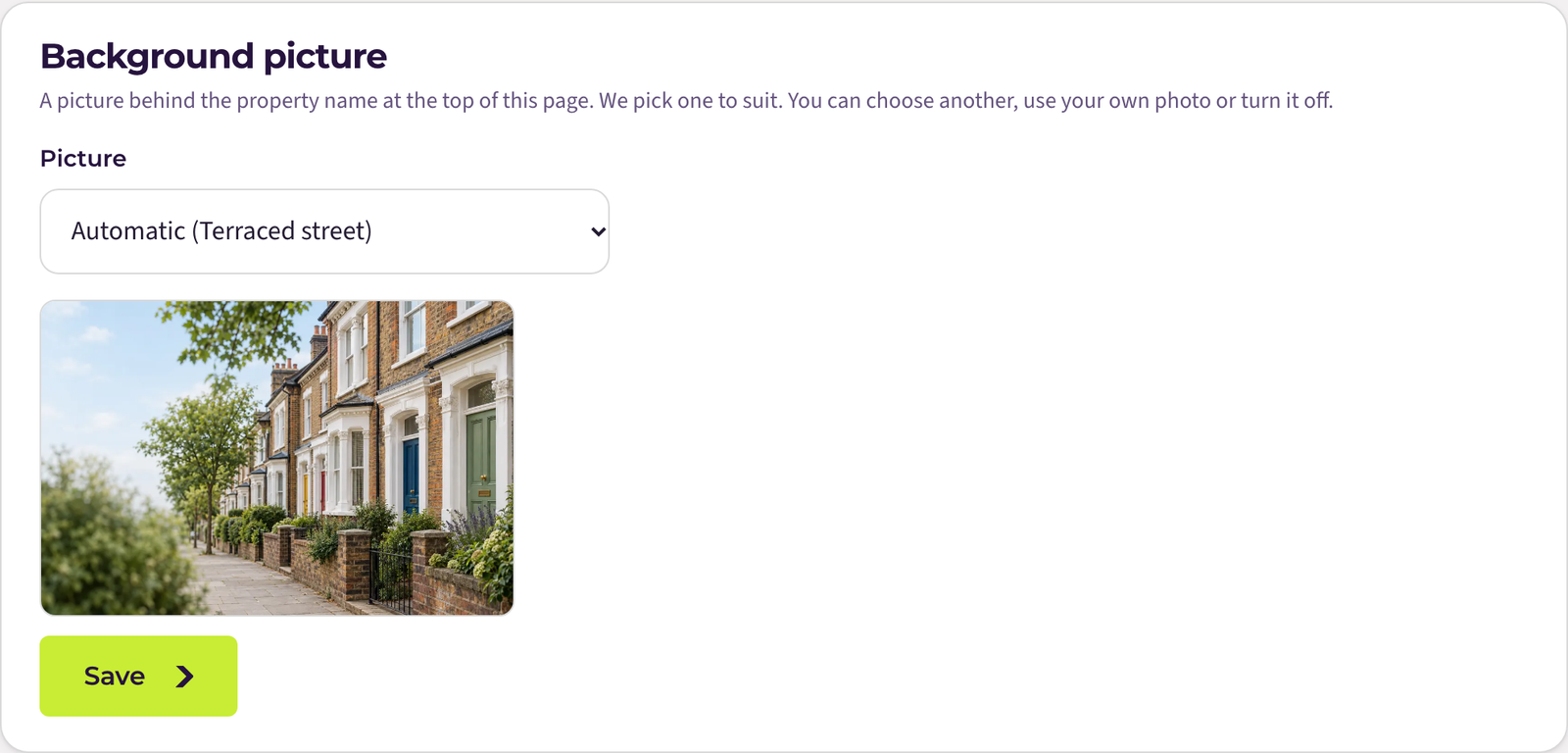
Automatic is the starting point. We choose a picture from the name, address or type of work, and the one we picked is named in brackets.
2. Pick from the library
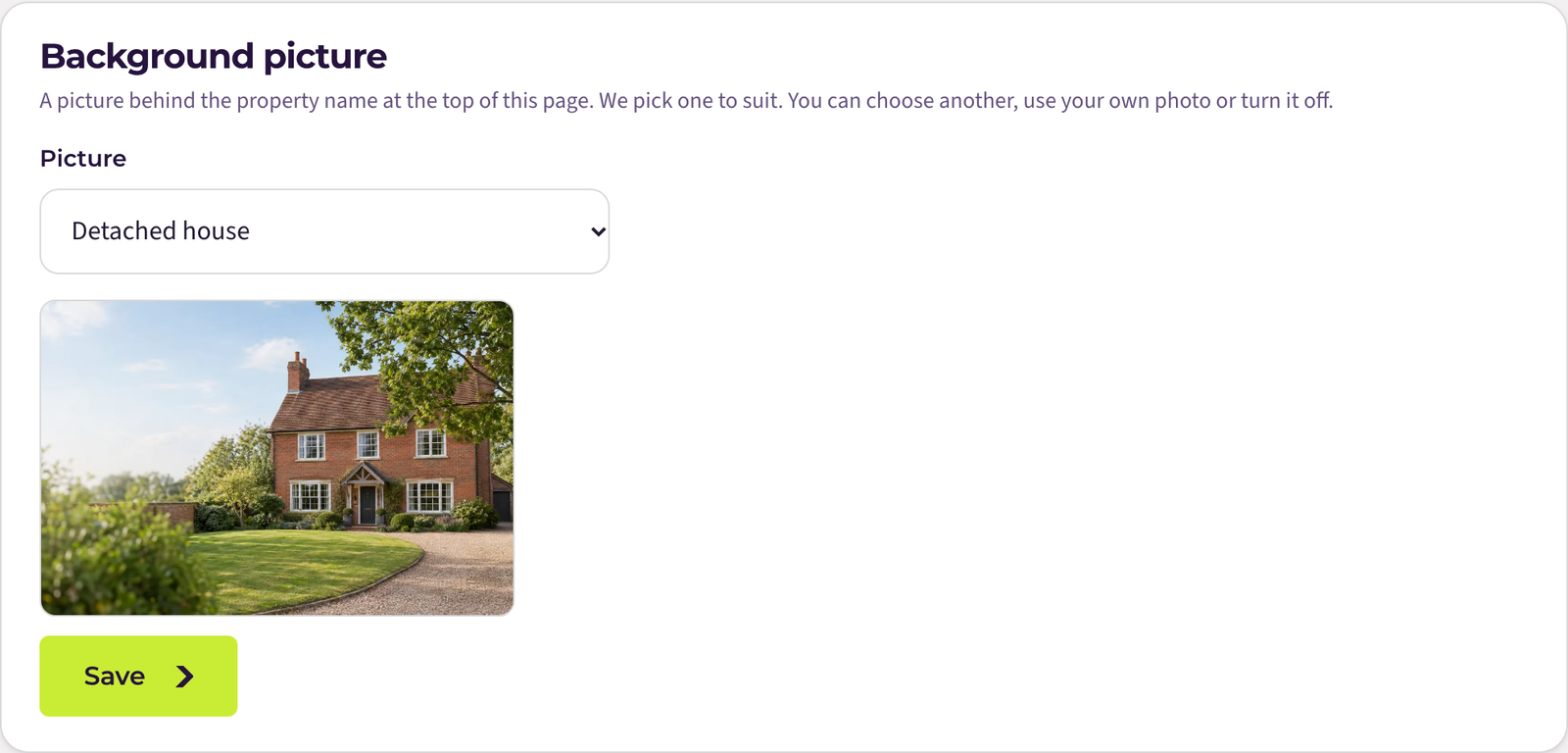
Open the Picture dropdown. There are pictures for different kinds of home (terraced, semi-detached, flats, holiday lets, garages) and for many trades. A preview appears as soon as you choose one. Select Save to keep it.
3. Or use your own photo
Choose Upload your own photo from the dropdown, then select Choose a photo and pick one from your phone or computer. A preview appears straight away. Select Upload and save.
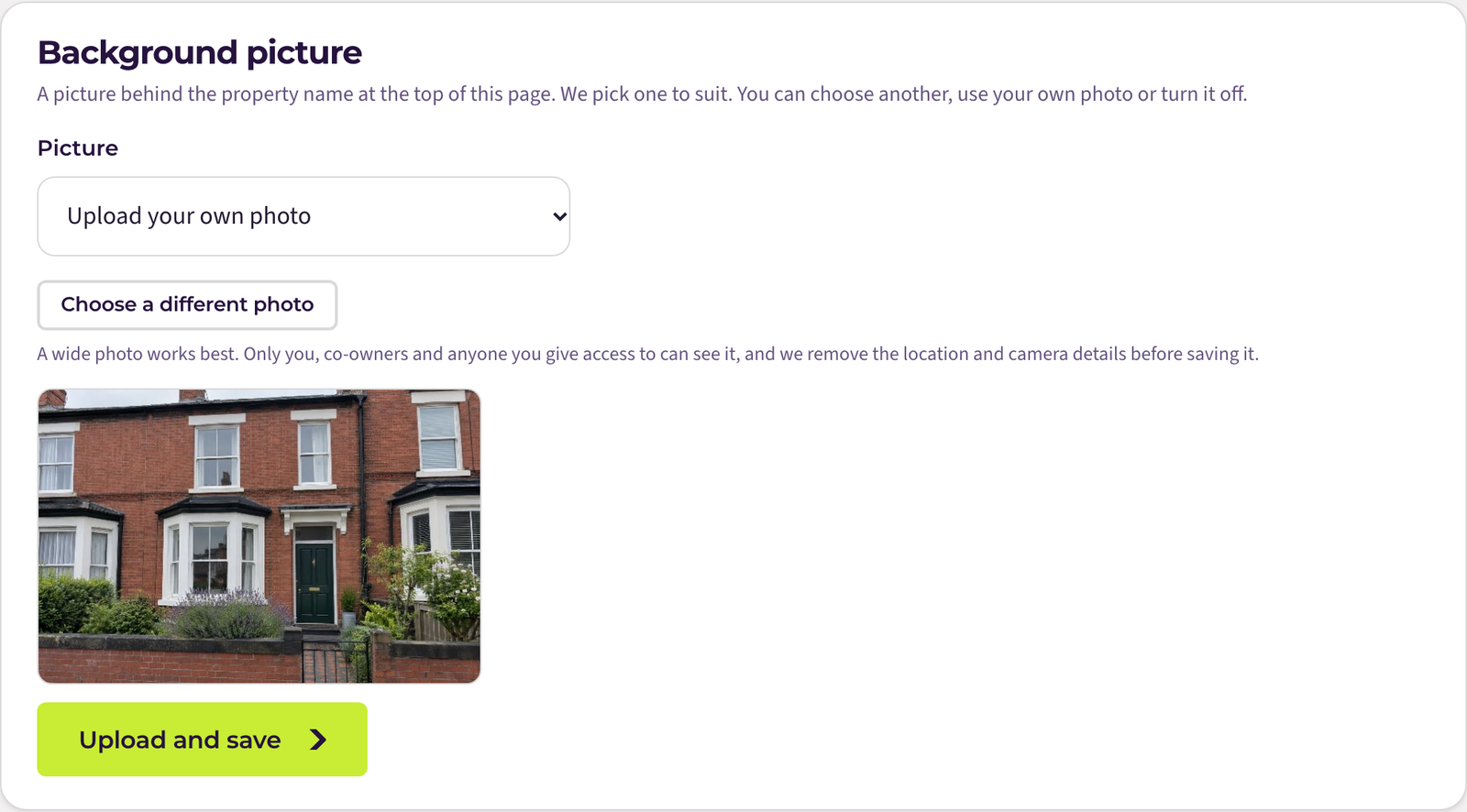
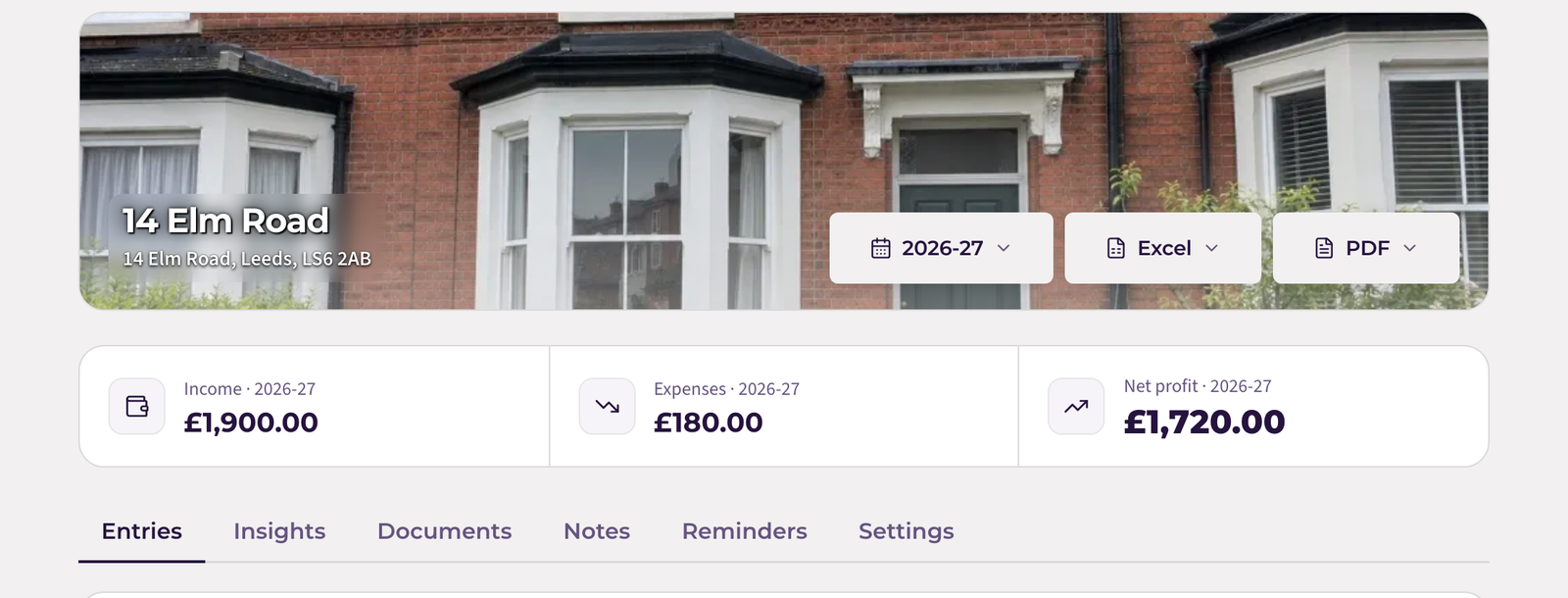
The picture is cropped to a wide strip at the top of the page, so a landscape photo with the main subject in the middle works best.
Your photo stays private
- Only you, any co-owners and anyone you have given access to (such as your accountant) can see it.
- Phone photos often carry the place they were taken and details of the camera. We remove all of that before the photo is saved.
- If you delete the property, business or your account, the photo is deleted with it.
Changing or removing your photo
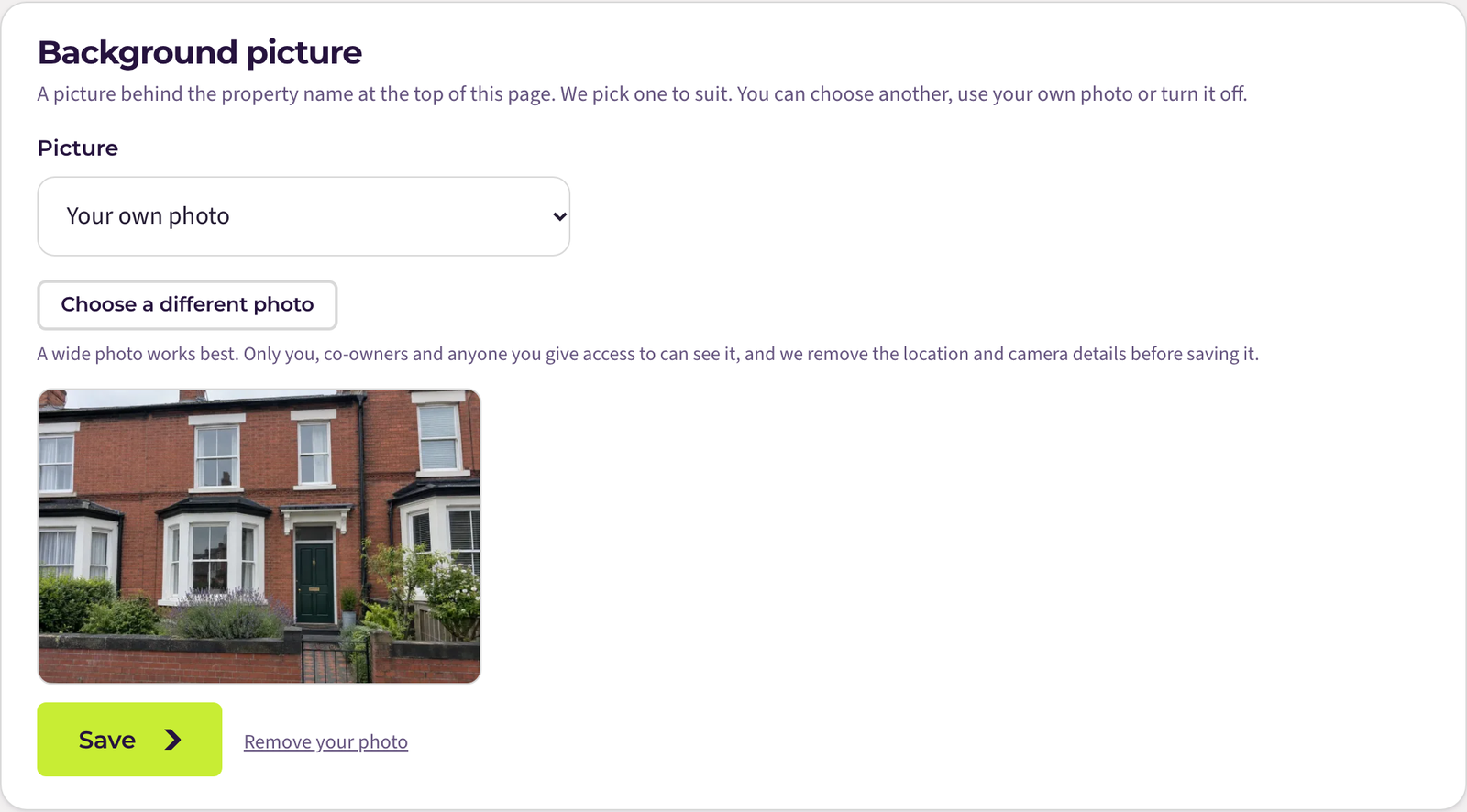
Once a photo is uploaded, the card shows Your own photo. Select Choose a different photo to replace it, or Remove your photo to delete it and go back to an automatic picture. Picking a library picture instead keeps your photo in case you want it back later.
Turning the picture off
Choose No picture at the bottom of the dropdown and select Save. The name then sits on a plain header.
If something stops you
- “That photo is too small to fill the space”: use a photo at least 400 pixels wide. Any photo taken on a phone is large enough.
- “We couldn’t read that photo”: use a JPEG, PNG or WebP. On an iPhone, photos are converted for you when you choose them.
- “Only the owner can change settings”: the property has been shared with you. The owner chooses its picture.
Still stuck?
Email support@quarterwise.co.uk and say which step you are on. A person reads every message.