Your account
Give your accountant access
Your accountant can see your books, or keep them for you, from their own free login. You choose what they can do and can remove them at any time. Filing to HMRC stays with you.
Two minutes · Updated 15 September 2026
What your adviser can and cannot do
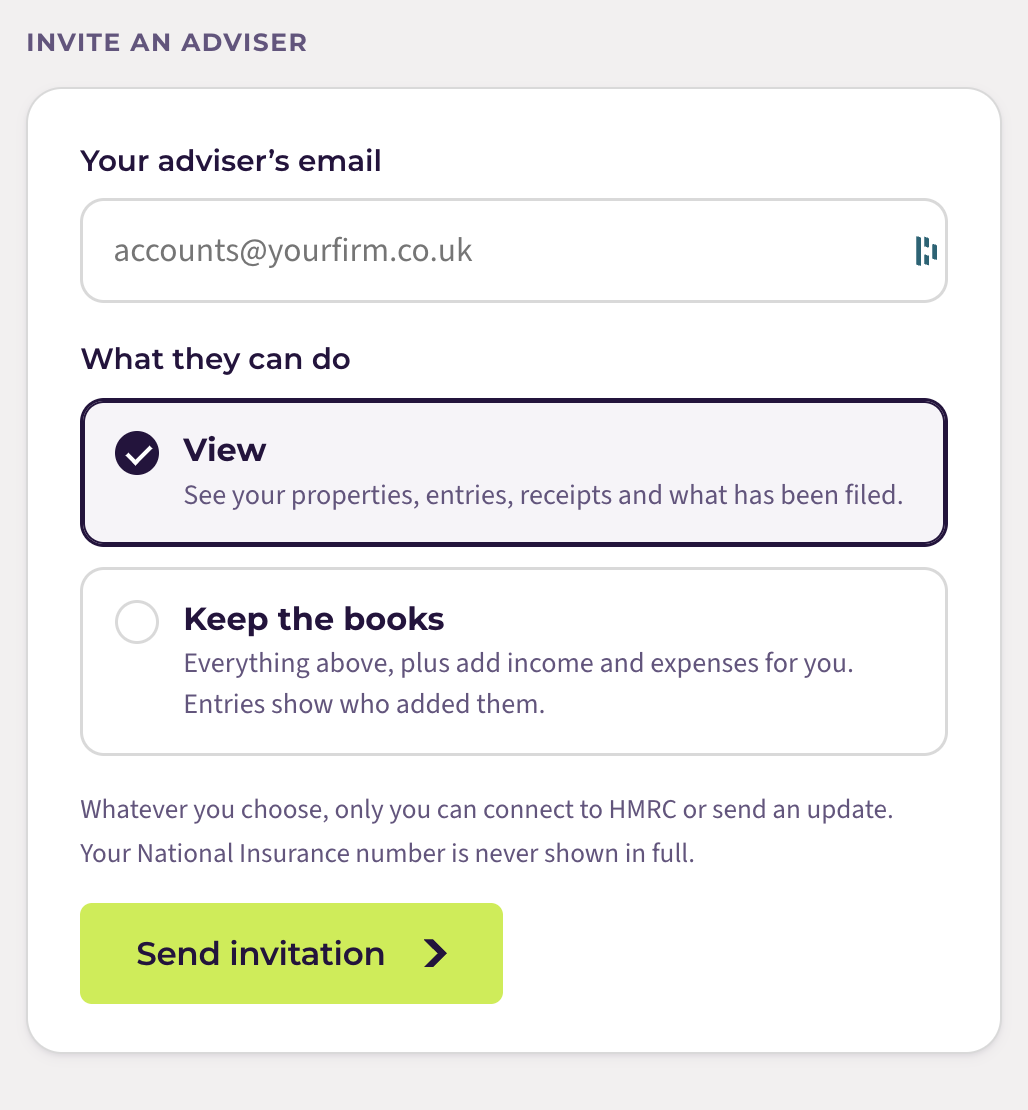
Your adviser sees your properties and businesses, every entry, receipts and documents, and which quarterly updates have been filed and which are due. If you choose Keep the books, they can also add income and expenses for you, and each entry they add is marked with their name.
Whatever you choose, some things stay with you alone: connecting to HMRC, entering your National Insurance number, setting your quarterly periods, and sending any update or declaration to HMRC. An adviser on Quarterwise is not your HMRC agent, and your National Insurance number is never shown to them in full.
Step by step
1. Open your adviser settings
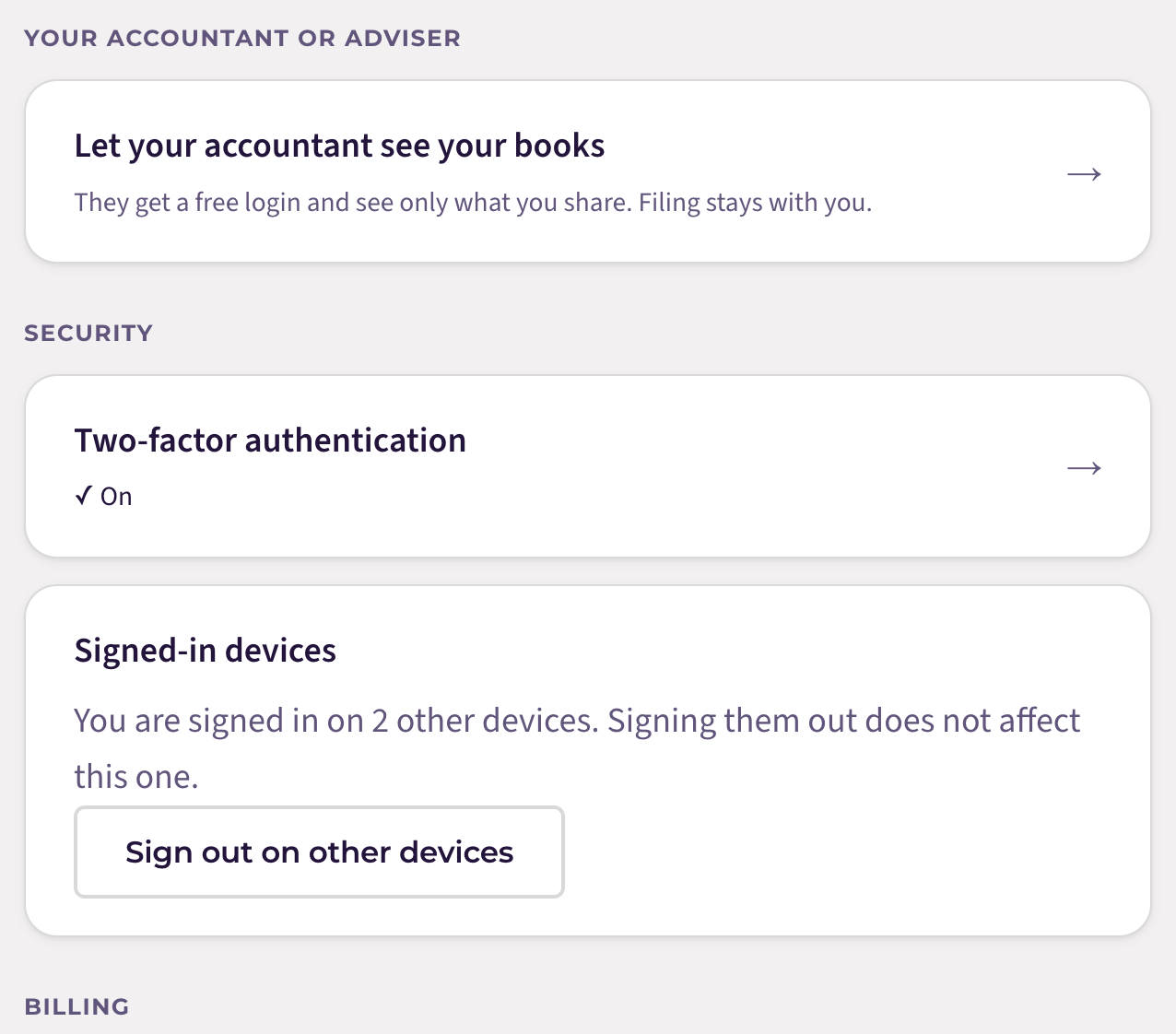
Sign in, open My account from the top right, and choose Your accountant or adviser.
2. Enter their email and choose what they can do
Type your adviser’s email address. Choose View if they only need to see your books, or Keep the books if they will enter income and expenses for you. You can change this later.
3. Send the invitation
Your adviser receives an email with an accept link, valid for 14 days. If they do not yet have a Quarterwise account they create a free one with the invited address, then accept. You can invite up to five advisers.
4. They accept
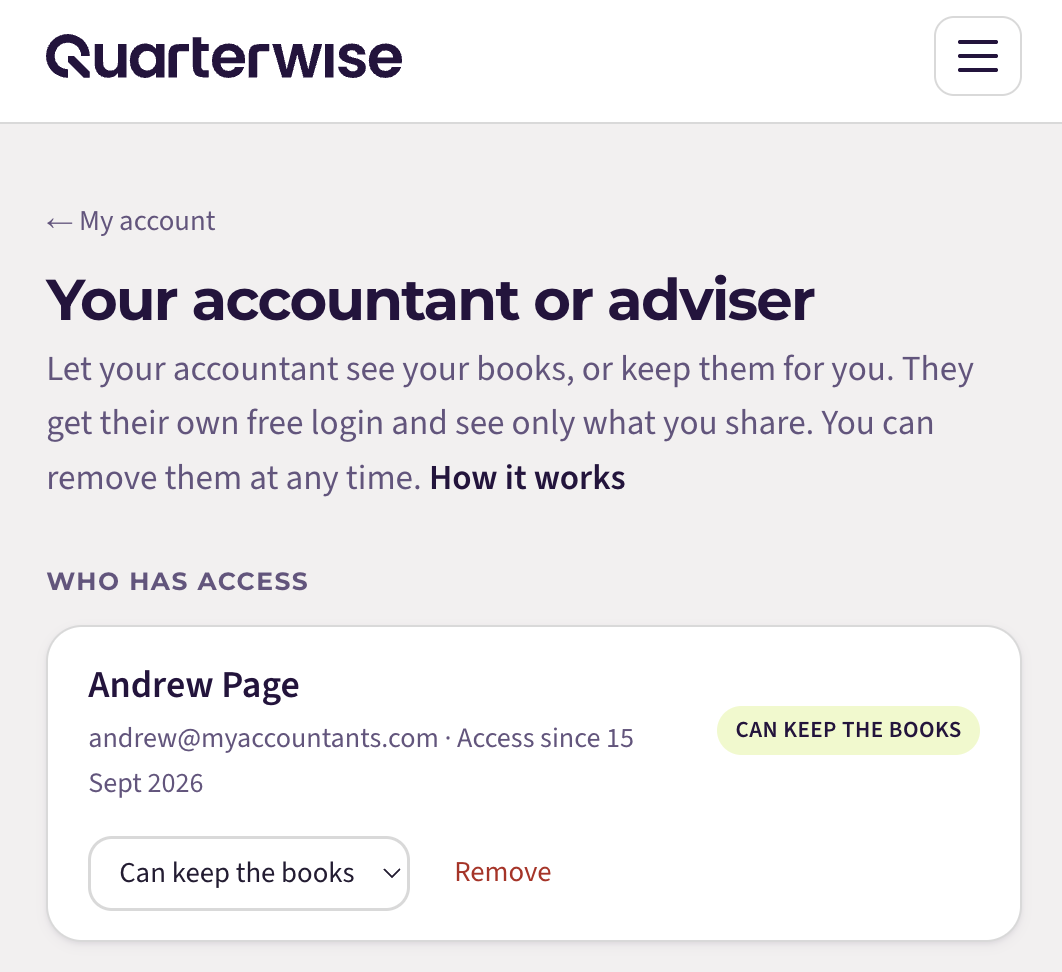
You receive an email when they accept, and they appear under Who has access. From their side, their dashboard gains a Clients tab listing you alongside any other clients, with your filing status for each quarter.
Changing or removing access
Under Who has access, use the dropdown to switch between View and Keep the books, or select Remove. Removal is immediate: their next page load no longer shows your books, and they receive an email telling them.
If your adviser cannot see you
- They signed in with a different address. The invitation only works for the address you typed. Ask them to sign in with that one, or remove and re-invite the right address.
- The link has expired. Invitations last 14 days. Remove the pending invitation and send a new one.
- They already have access. Only one live invitation per address is allowed; check the list.
Still stuck?
Email support@quarterwise.co.uk and say which step you are on. A person reads every message.